
 Skip to main content


This article describes the process of initial configuration and basic work with Palm Web OS on the lower level than it’s described in Palm SDK docs.
Contents:
Introduction
Palm company released the new smartphone managed by GNU Linux based operating system. This product becomes more and more popular due to the cute GUI, well-documented SDK and easy start on the development. But nevertheless many low-level features of this system is poorly documented.
This article will be useful for those who start working with the console interface of GNU Linux generally and Palm Web OS in particular. It may be useful also for the developers who need more capabilities than Mojo SDK provides to solve their task.
In this article we’ll consider such questions:
- SDK installation and configuration.
- Accessing Linux using “novacom” utility. Basic Linux commands.
- Installation of additional utilities (sudo, package manager etc.). Configuration of the virtual machine (virtualbox). Installremove packages.
- Short description of the system files and directories specific for Palm Pre.
- Work with FTP on Palm Pre, review of some files content.
This article is some kind of review.
1. SDK Installation
I used emulator from the Palm Mojo SDK package to research the features of Web OS.
You can download it from the official site: http://developer.palm.com/index.php?option=com_ajaxregister&view=register&sdkdownload
Or use this link (no registration): http://developer.palm.com/index.php?option=com_content&view=article&id=1788
Choose the platform you need on the download page (Fig.1) and then follow the instuctions on the site and in Install Wizard. It’s better to install Java first, thenVirtualBox, and thenSDK. Such order decrease the possibility of errors.
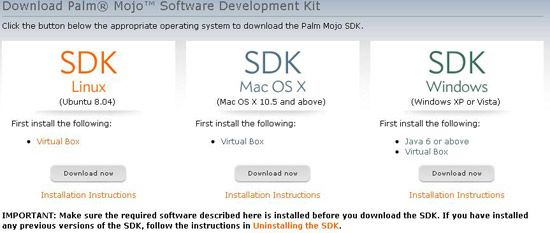
Figure 1: Choosing platform
During the installation the virtual machine for Palm Web OS will be created. You don’t have to create it manually.
2. Start to work with Linux
To start work with Web OS Linux start the emulator. You can use either the shortcut created by installation program (fig.2) or VirtualBox interface(fig.3).
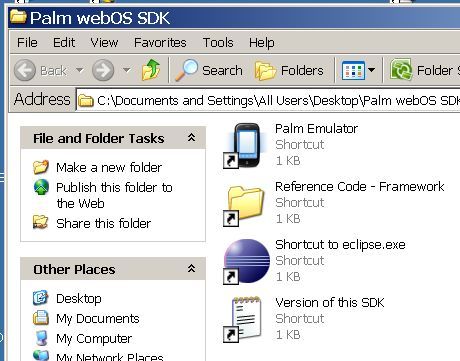
Figure 2: Start with shortcut
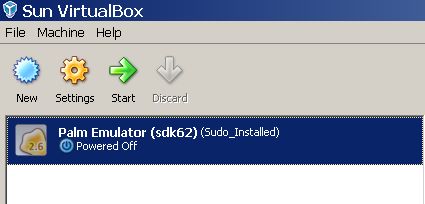
Figure 3: Start from Virtualbox
If verything is ok then you’ll see the Emulator window (fig.4). We’ll need the Internet connection for the further work. It should be configured only in the host system (in our case it’s Windows) . You can check ff there is Internet on Emulator simply starting Web Browser. To do it choose Programs (right bottom icon) => Web. After that try to open some site just like on the computer. Search something for example (fig.5).
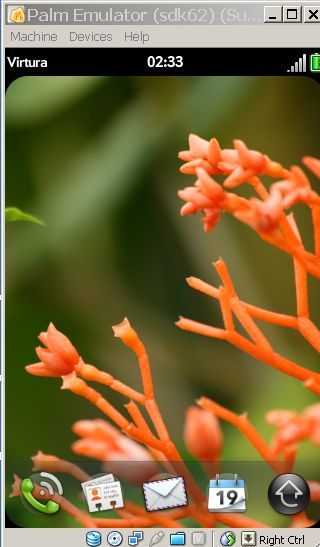
Figure 4: Palm Emulator
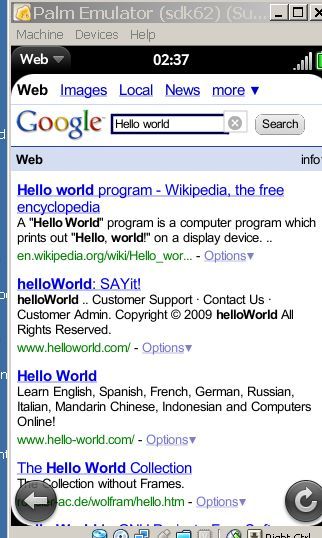
Figure 5: Palm Web Browser
Now we should use the novacom.exe utility to connect to the device. To get the full information about this program options enter
novacom.exe --helpThe command
novacom.exe -t open tty://opens the Linux terminal window.

Figure 6: Linux Console
Note: like in the usual Linux, more than one terminal can be opened in Web OS.
First lets browse the file system. ls command is used for this. After entering it we see the content of the current directory (root by default).

Figure 7: Results of the ls command
To distinguish files from directories we an use option ls -F

Figure 8: Results of the ls -F command
Directories now have / symbol at the end. So as you see we have only three files in the root directory: wget, log.txt, md5sums.
When using ls -F some other symbols can occur at the end of the file names.
| Suffics | Meaning |
| @ | Symbol link |
| * | Executable file |
| / | Directory |
| = | Socket |
You can see the examples by entering commands:
ls -F /binls -F /tmpMore detailed information about the file system element type can be obtained by means of file utility. This utility is disabled in Palm Web OS by default. Later we’ll consider how to install it.
To browse the file content use the command cat <filename>.
For example,
cat md5sumsTo obtain the full information about the command enter <command> --help, or search the Internet with keywords “man <command>”. You can also read the help in the full Linux version entering “man <command>”.
I propose reader to learn also such commands as rm (remove filesdirectories), mkdir (make directory), touch(create file), cp (copy), pwd (get current path).
3. Program Installation
The process of the program installation for Linux is a bit different from this process in Windows. Unlike other systems Linux has repositories. Repository can be considered as the database that contains program, libraries, and relations between them. There is some special software that manages repositories and install software on the local computer. Such software is called “package manager”. The package manager compares software versions on the computer and in the repository, download software, resolve conflicts between packages. More information about package managers can be found in the articles [4],[5],[6],[7].
By default, Palm Web OS does not have a package manager. To install it use the guide
http://www.webos-internals.org/wiki/Next_steps.
The script optware-bootstrap.sh performs the following:
- Formats /dev/hdb for its needs
- Installs package manager ipkg-opt
- Creates the list of repositories /opt/etc/ipkg/optware.conf
- Installs the sudo program, creates the user with the root (administrator) rights
- Installs ssh, sftp server.
In the original script some of the mentioned actions cannot be performed on the emulator (for example (4)). It’s also required to have /dev/hdb device. By default, there is no such device on the emulator so you should add it manually. Detailed instructions can be found here:
http://www.webos-internals.org/wiki/Adding_Disks_to_the_Emulator
I’ve put the fixed version of this script into the attachments to this article. It lets user to change disk for installation and also is free from the limitations for the emulator.
To start the fixed script you shoud get it on the device using the wget command. To organize file exchange with the device you can install ftp server on your computer or other computer in your local network.
After entering the command
wget ftp://192.168.0.60/optware-bootstrap-edited.shthe file will be uploaded to the device файл to the current directory (ip adress should be of the computer with ftp server of cause). DON’T use symbol names of the machines (for example
wget ftp://my_computer_name/optware-bootstrap-edited.sh) as far as Web OS won’t be able to convert them to the address correctly.
So, we have executed the script and installed a lot of useful programs. Now we have package manager and so we’ll be able to install all missing programs. To do it, use the following command:
ipkg-opt install <parckage name>.For example
ipkg-opt install fileThe list of the packages can be browsed by the command
ipkg-opt listor by following the link:
http://ipkg.nslu2-linux.org/feeds/optware/i686g25/cross/unstable/Packages
Developers and enthusiasts may want to install gcc compiler, gdb debugger, make utility, python interpreter and other great things. The presence of these utilities allows program installation by means of building from the source texts.
4. System folders review
Let’s start from the folders that are common for all Linux systems.
4.1 Standard system directories
1. /bin, /lib, /home,
These are folders for standard utilities from Linux package, shared libraries (Windows *.dll analogues) and user files correspondingly.
2. /mnt, /media, /lost+found
The access points to the external data storages (floppies, hard disks, optical disks) are stored in these directories. In the Palm memory card (micro sd) can be mounted to this directory. And there is nothing interesting there on the emulator.
Note: The lost+found directory is specific for the extX (ext1, ext2, ext3, ext4) file systems.
3. /dev
Device files are stored here.
/dev/hd[a..z][1..N] – logical partitions of hard disk
/dev/hda1 – root file directory
/dev/hdc – bootloader
/dev/hdb – the section we created earlier or the physical data storage of the real device – 8GB (~7GB user available)
ttyN – console devices.
null – «black hole», eating all information that is entered into it.
Check out our another article to learn how to write a bootloader.
4.2 Specific Directories of Web OS
1. /var/luna/data/dbdata/
There are databases used by high-level applications of Web OS.
Basically PalmDatabase.db3 and PalmAccountDatabase.db3 is in sqlite format. There are data of such applications as mail accounts, notes, calendar, chat, memo stored in them.
They can be browsed by any sqlite viewer (see [9]). I would like to advise this one http://link.osenxpsuite.net/?uid=homepage&id=sqlite2009pro.zip
We will discuss how to exchange files with Palm Pre in the next section.
2. /var/luna/data/mediadb.db3
The data about the locations of images, music, movies etc. are stored here. After analysis I can say that these data are stored in the directories: /media/internal/, /usr/palm/ and their subdirectories.
3. /var/luna/data/emails
The text of email messages is stored in this directory in html and ascii formats.
4. /usr/share/dbus-1/system-services
Here you can find Java services (or, if yo like, deamons). Using them the application developed with the usage of Mojo SDK can get access to the low-level components of the system.
5. /usr/lib/luna/java
Here java library files (*.jar) are stored, they are used by services.
5. Work with FTP on the Palm Pre
5.1. Data exchange procedure
Well, now we know what and where is situated. But it’s not very convenient to research file content directly on Palm Pre. So we have a task of getting files from the device.
One of the methods is FTP protocol. And so you should:
- Install FTP server (for example this one http://filezilla-project.org/download.php?type=server ) to the one of the computers in the local network you work in (for example on your own one).
- Install the FTP client on your computer. It can be the plugin for Far Manager or Total Commander, or it can be separated application – for example FileZilla ftp client (http://filezilla-project.org/download.php ).
- Install FTP client to the Palm Pre:
ipkg-opt install ncftp
- Use ncftp to transmit data to the server (it will be described later).
- Get data from FTP server to your computer.
5.2 Work with console client ncftp
To connect to the server enter ncftp <url>.
Or
ncftp
open <url>Remember that
<url> = ftp://<Ip Address>/     symbol names are not allowed
<url> = <bookmark name>When the connection is established the current local directory is «frozen». Instead of working with the directory all commands of navigation in the file system are translated in the commands of the FTP and processed by the server.
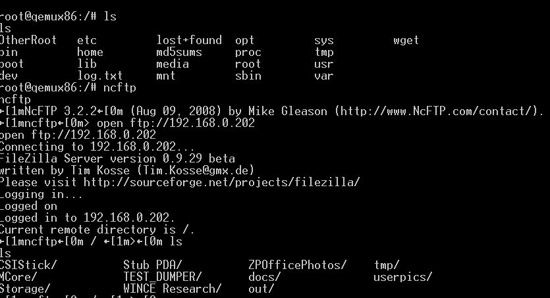
Figure 9: Server navigation with ncftp
Now, after you choosed the necessary remote directory data exchange can be performed:
put <filename>
get <filename>You can also use some mask instead of the argument. For example, put *.txt
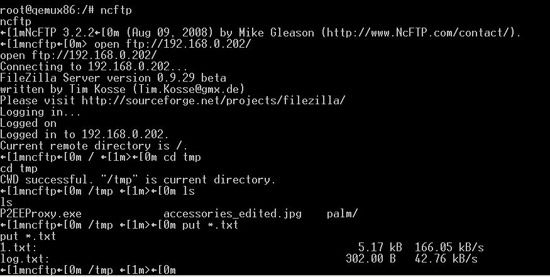
Figure 10: Transmission of the several files using the mask
To send the directory use the command put -R <dir_name>
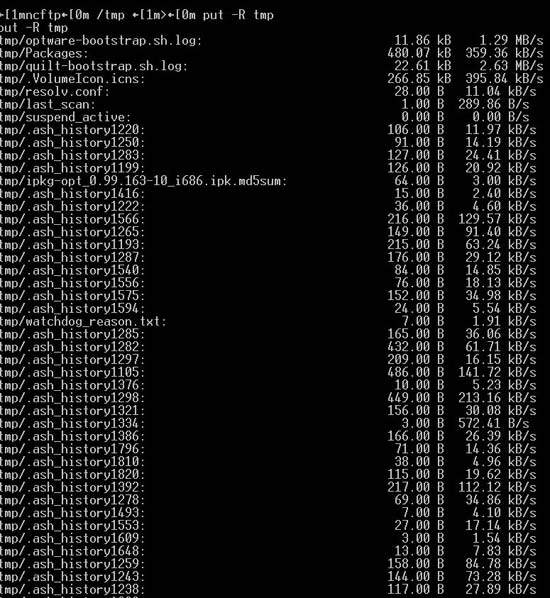
Figure 11: Sending the directory with ncftp
Ncftp also supports such commands as mkdir, rm, rmdir, pwd.
The same commands but with l- prefix are used to navigate in the local file system: for example lmkdir, lls, lpwd etc.
You can find the full list of the commands on the official program site:
http://ncftp.com/ncftp/doc/ncftp.html
Download scripts sources.
References:
- http://developer.palm.com/
- http://www.palm.com/us/products/phones/pre/
- http://www.webos-internals.org/wiki/Next_steps
- http://www.control-escape.com/linux/lx-swinstall.html
- http://www.linuxforums.org/forum/linux-tutorials-howtos-reference-material/64958-how-install-software-linux.html
- http://www.linuxcenter.ru/lib/articles/system/rpm_howto.phtml
- http://www.debian.org/doc/manuals/apt-howto/index.ru.html
- http://www.webos-internals.org/wiki/PalmDatabase.db3_File
- http://www.sqlite.org/cvstrac/wiki?p=ManagementTools
- http://link.osenxpsuite.net/?uid=homepage&id=sqlite2009pro.zip
- http://ipkg.nslu2-linux.org/feeds/optware/i686g25/cross/unstable/Packages
- http://filezilla-project.org/download.php?type=server
- http://filezilla-project.org/download.php
- http://www.perpetualpc.net/srtd_commands_rev.html
- http://ncftp.com/ncftp/doc/ncftp.html
Continue reading with this artcile “Writing Linux device drivers“
Have a question?
Ask our expert!

Program Manager