
 Skip to main content

In this article we will talk about the file systems and files, but the most attention will be focused on the key points of testing of software that works with NTFS and FAT file systems.
At the end we will give our check list for testing of software, working with the FAT and NTFS file systems – we hope that it will help you in development of testing plan for your software.
Contents:
- 1. Introduction
- 2. Testing of applications workings with the file systems
- 3. Additional points from general testing principles
- 4. Conclusion
- Appendix1 Check List for testing
1. Introduction
File system is a part of the operating system. All necessary information is stored in files which we work with. So corrupted or disappeared without trace file makes us, at least, not very happy. Thus, if the developed software does not handle the storing of user information then it is synonymous to failure.
2. Testing of applications workings with the file systems
In the internet – and not only there – you can find a lot of sources on the file systems describing their type, structure, history and features. Therefore let’s believe that all readers have such knowledge.
First let’s define the basic principle in our testing as following: the result of all actions must be the same to the one obtained when the operating system works without us. We can work better, but never worse.
As experience shows, the operations are the first that occur when we start talking about the file systems and files. It is not difficult to list them: to create, copy, move, rename, modify and delete. Exactly this list will help us in testing.
2.1 Creation of the file system
Our testing starts where the file system is created, namely in the moment of disk formatting. During this process user chooses the system to be created: FAT or NTFS. Pay attention that all of disks are formatted with a standard (by default) cluster size.
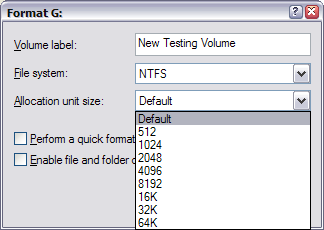
Figure 1 Formatting dialog form
Thus, we must check:
- Formatting of empty disk with the new file system FAT\NTFS.
- Formatting of not empty disk with the new file system FAT\ NTFS. I.e. we already had the file system and files on a disk before formatting.
- Formatting with the non-standard size of a cluster. It’s important when we choose file size for testing of the NTFS file system. In fact if the file size will be less than 2 clusters (cell of MFT table) then the file will be fully placed in MTF table. And so we won’ be able to check up work on difficult transitions between the disk clusters.
- Fast formatting function for FAT\NTFS.
- Option of information compression during the formatting in NTFS systems (economy of disk space).
- Change properties of data compression for NTFS file systems on the fly in the disk properties:
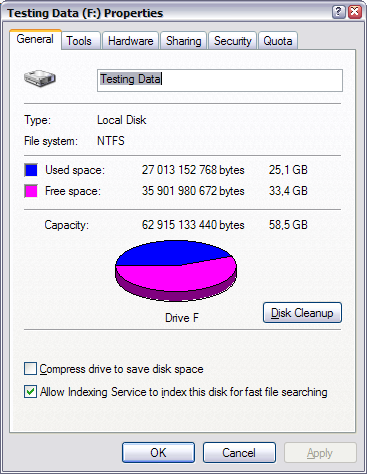
Figure 2 NTFS disk properties form
This option also creates additional test surroundings – compressed\ not compressed NTFS disk – for testing of file operations.
- Correctness of volume identifier, sizes of used and free spaces, capacity.
2.2 Files\Folders and work with them
Verification of file operations is the essential part of testing of software with the file systems. We will mark that talking about the file systems and files we do not mention the folders but always have them in mind.
There are not a lot of file operation: it’s just reading and writing. But they look differently for user: create, copy, move, rename and delete a file(s)\ folder(s).
Therefore we will test:
- Creation of a file by means of explorer or application menu. Pay attention that an application usually creates file not with the Create function but with the Save one. Another interesting moment is installation when we specify our disk for the software. After that the application should not only be installed but also start and work.
- Copying\ Moving files and folders within the one disk and to the other one.
- Option to rename a file\folder. Especially when it is locked by other applications.
- Deleting file to the recycle bin and directly. Naturally we should check that after restoring from the bin files are still valid.
Take into account (!) the fact that an operation depends on the application that executes it, therefore provide yourself with a few file managers, not only Windows explorer.
Let’s continue testing. Each file has a lot of properties. And if not all then many of them should be checked.
2.3 Properties of files and folders
Properties of files and folders have a lot in common, but there are differences. We test:
- Work with the files/ folders with the simple names: lines of the defined format. Here it is the set of allowed characters.
For example: Test1.txt
- Empty line as a filename.
- Long name that has more than 8 characters and includes blanks.
For example: Testing is the most exiting activities in the World.txt
- Name containing the special characters: \/:*? ” |
Now let us take into account a specialty of folders: there can be subfolders. So we get additional tests on work with the subfolders. But what number of subfolders will be enough? About 10 must be enough for an ordinary user, but sometimes there are exceptions. User profile can tell more about it.
- We check up work with the folder nesting equal to 10 subfolders.
- Check file creation/modification date and time. Size on disk and the real file size should be checked too.
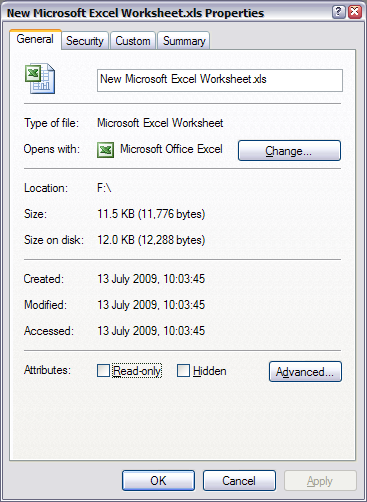
Figure 3 File properties form
- Also there are file attributes: readonly, hidden, system and additional attributes (compressed file, encrypted file, indexation attributes).
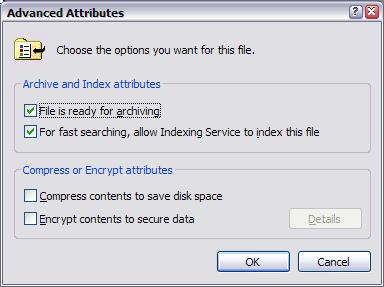
Figure 4 Advanced file properties
- File icons should be shown as they are defined in the operating system. It’s user-friend requirement.
- Talking about icons, we step up to the file types. It’s very important aspect of testing, because it is necessary to check the different types of files. You can start with the most popular ones, for example ms office, pdf, dvju, exe files, installations and so on.
2.4 NTFS Links.
We start this section with a small piece of theoretical material.
The Windows kernel supports the followings types of links:
- Hard Links. Available since Windows NT4. They can be created only to files.
- Junction Points is symbolic links. Available since Windows 2000. They can be created only to directories.
- Symbolic Links. Available since Windows Vista. They can be created both to folders and files.
HardLink is simply another record in the folder for this file.
When hard link is created the file is not copied physically, and only appears under another name or in another place, while its old name and location remain untouched. After this moment hard link is the same to the primary record in the folder. The only difference is that the short file name is not created for the hard link, therefore it is not visible from the DOS programs.
When a size or file date/time changes all corresponding records in folders are refreshed automatically. At the delete of file he does not retire physically until all of hard connections, indicative on him, will not be remote. The order of their delete of value does not have. After deleting the hard link to the recycle bin the number of links for the file remains the same.
Creating hard links is possible only in the same partition where the initial file is located.
NTFS since 5.0 version (Windows 2000/XP) supports symbolic links (SymLink). Folder symbolic links in Windows 2000/XP are known as «Directory junctions» – the technology that enables to represent any local folders to any other local folders. For example, if the folder D:\SYMLINK is linked to C:\WINNT\SYSTEM32 as its target, then the program addressing to D:\SYMLINK\DRIVERS will actually address to C:\WINNT\SYSTEM32\DRIVERS.
Unlike hard links symbolic links not necessary address to the same partition. Thus the character links can be broken if we change the structure of partitions.
Even Windows explorer is not able to work correctly with everything supported by the kernel. Therefore when testing the applications taking disk images and also different file managers you should check them for work with ntfs links.
Usually there are no problems with hard links, however symbolic links sometimes behave rather strange.
When testing the applications with built-in file managers you should check:
- If the symbolic links are shown correctly.
- If the transition by the symbolic links is performed correctly. As soon as junction point can be created in such way that it will refer to itself or to the paternal directory, it is necessary to test such cases separately. Many known file managers can fall into recursion when attempting to follow such links.
- If the size of directory containing links is detected correctly. And problems here can be both with symbolic and hard links.
- If the links are copied correctly. The correct behavior in this case is to make the copy of link, but not copy of the folder which it refers to. The case when the copying is performed to another hdd should be also considered. Another case is when folder contains broken links – you should check if it can be opened.
- If the links are correctly deleted. Some file managers delete not only the link but also the directory which it refers to. In this case there is the real risk to lose information. Most likely there will not be such problem for the hard links but nevertheless you should check that it’s impossible to delete the file before all its links will be deleted. There can be also a case to check if user can delete file link when file is opened by another link.
- If the links are correctly moved. Actually moving consists of copying and deleting but it’s always better to check one more time.
When you test applications that create disk images or mount them you should check them for link cases too. Created and mounted image should show links correctly, go to the corresponding folders following the links, including recursive ones, and should not crash at the broken links.
When you test archiving and encrypting applications you should also check them with the folder containing the usual links, recursive and broken ones. The application should not crash or hang while achieving/encrypting. And links should remain working after extracting/decoding to the same partition.
We can recommend the following software for working with the NTFS links:
Utilities from Microsoft:
mklink command was added in Windows Vista to make symbolic and hard links. Syntax and examples can be found here: http://technet.microsoft.com/en-us/library/cc753194(WS.10).aspx
In Windows 2000 and higher Hard links can be created from command line by the command fsutil and its parameter hardlink. Description can be found here: https://learn.microsoft.com/en-us/windows-server/administration/windows-commands/fsutil
Microsoft Windows Resource Kit can be used to work with junction points http://www.microsoft.com/downloads/details.aspx?familyid=9d467a69-57ff-4ae7-96ee-b18c4790cffd&displaylang=en
Linkd.exe, Mountvol.exe and Delrp.exe utilities might be required for this kit – see description and examples here: http://support.microsoft.com/kb/205524
You can also use junction.exe utility from Microsoft to work with junction points. Its advantage is that you don’t have to download the whole Resource Kit. Download and description here: http://technet.microsoft.com/en-us/sysinternals/bb896768.aspx
Extensions for Explorer
Additionally to all mentioned console utilities there are a number of free programs that integrate in Windows Explorer add their commands to the pop-up menus and allow to work with links of all types. In addition, they hook the Explorer calls providing normal moving/copying/deleting of the created links.
NTFS Link
NTFS Links: http://alax.info/blog/ntfslinks
Personally we recommend Link Shell Extension – it has wide functionality and detailed description: http://schinagl.priv.at/nt/hardlinkshellext/hardlinkshellext.html
Other utilities
FAR file manager (http://www.farmanager.com/) supports Hard Links and Junction Points. You can use Alt-F6 combination to create links.
Junction Link Magic — easy to use free program with g\GUI to work with links except for Hard links. See it here: http://www.rekenwonder.com/linkmagic.htm
2.5 NTFS Alternative Data Streams (ADS)
The alternative data streams appeared in Windows NT together with NTFS file system. It was done for providing of compatibility with HFS (old file system of Macintosh), which divided each file into the file of data and file of resources.
Windows Explorer and other applications work with a standard stream and cannot read information from the alternative streams. Alternative streams are not shown in the Explorer; their size is not counted in the file size. When you copy a file to the disk with FAT system or to the network share alternative streams are not copied. They are chopped off also if you upload a file on the web server or attach it to the email.
Testing
To date not everybody knows about existence of ADS. Meantime, they must be taken into account when testing applications that make disk images or perform search of hidden information.
While testing file managers you should check:
-
- If the file with ADS is correctly opened
- Whether ADS are kept after a file is copied on NTFS partition
- If the size of file with ADS is correctly counted
- If a file is opened correctly after ADS are deleted.
Testing of applications that make disk images (and also archiving and encrypting programs) requires checking that they correctly add files with ADS in the image, i.e. after mounting (extraction/decoding) of this image it is possible to browse data in the alternative streams.
Creation of test data
We’ll use command line to create test file. First let’s create a file in the standard stream:
  C:\>echo Visible text>file.txt
  C:\>type file.txt
Visible textThis file can be opened in Notepad and you can see text there: Visible text. Now we can create an alternative stream in this file. To address to the alternative stream colon operator is used:
C:\>echo you cannot see this text>file.txt:altstream.txtdir, type commands and Windows Explorer won’t help you to see the content of alternative stream. Instead we will use more command:
C:\>more < file.txt:altstream.txt
You cannot see this textIt is also possible to see the content of alternative stream in the Notepad:
C:\ notepad file.txt:altstream.txtSee the size of file.txt – it is 14 byte, i.e. content of alternative stream is not counted in the file size.
It is possible to create a few alternative streams for each file.
An alternative stream can be attached not only to the file but also to the folder.
Let’s create a folder:
C:\>md folderAttach some text in the alternative stream:
C:\>cd folder
C:\ folder >echo Hidden text >:altstream.txtIf we browse the content of the folder we can’t see hidden text:
C:\ folder >dir
  Volume in drive C has no label.
  Volume Serial Number is DC9B-ABBE
  Directory of C:\folder
07/04/2009 10:19 AM>dir
.
07/04/2009 10:19 AM
>dir
.
0 File(s) 0 bytes2 Dir(s) 12,253,208,576 bytes freeThe hidden text can be seen in the Notepad:
C:\folder>notepad : altstream.txtTo delete alternative streams from the file by means of standard Windows tools you can move the file to the disk with the FAT file system.
Thus we can create test information as alternative streams attached to the files and folders and browse them by means of standard Windows tools.
If the name of the stream is unknown we cannot address to it. To search for all streams of the file or folder Microsoft offers the simple console utility Streams.exe. To download it and learn syntax go here: http://technet.microsoft.com/en-us/sysinternals/bb897440.aspx
There is also a number of GUI of utilities to work with streams. Unfortunately, basic functionality of these utilities includes only scanning a file or folder to discover ADS and deleting some of them. Not all of such programs even show content of the streams. So they are not very useful for testing purposes.
We can recommend ADSTools. This utility enables to create streams, edit, rename, delete, scan files and folders to discover ADS and has a number of other features.
FAR plug-in to work with ADS is also rather useful. It enables to create streams for files and folders, browse streams of any file, delete streams etc. This plug-in is free.
3. Additional points from general testing principles
And a few words in conclusion about general things.
- Check your application not only for the correct work but also for performance. Time spent on file operations should be adequate to the input data. For example creation of empty file for 2 minutes is obviously not adequately and confusing.
- You should remember that your application is a guest of the operating system and so it must behave properly. It especially applies to the memory and memory leaks – so measure the amount of memory used during the work with files. You should pay attention on two aspects. First is its optimal amount: using 100 MB for the zero file is obviously strange. And the second is that after closing the application memory should be returned to the proprietor, i.e. to the operating system.
- Do not forget also that the file system is a part of the operating system, and so standard things should work such as hotkeys.
4. Conclusion.
This theme – testing of applications workings with the file systems – is very interesting, and it’s much wider than we showed in this article. We will try to continue this theme in the following articles.
On this point we say good-bye. Also we’ve added some templates of check lists which you can use for your testing.
Appendix1: Check List for testing
|
Create file system | ||||
| Test name | Test Result | |||
| Formatting empty disk with FAT file system and default cluster size | 0 | |||
| Formatting empty disk with NTFS file system and default cluster size | x | |||
| Formatting FAT disk with FAT file system and default cluster size | 0 | |||
| Formatting NTFS disk with FAT file system and default cluster size | 0 | |||
| Formatting FAT disk with NTFS file system and default cluster size | ||||
| Formatting NTFS disk with NTFS file system and default cluster size | ||||
| Formatting disk with FAT file system and custom cluster size | ||||
| Formatting disk with NTFS file system and custom cluster size | ||||
| Quick formatting with FAT file system | ||||
| Quick formatting with NTFS file system | ||||
| Format NTFS with compressing data | ||||
| Compress data for exist NTFS disk | ||||
| Validate NTFS disk properties: Name, Capacity, etc | ||||
| Validate FAT disk properties: Name, Capacity, etc | ||||
|
Files \ Folders and work with them | ||||
| Test name | NTFS compressed | NTFS not compressed | FAT | |
| Create file from explorer menu | 0 | 0 | 0 | |
| Save as from application file to disk | 0 | x | 0 | |
| Install Application into disk | ||||
| Extract archive to disk | ||||
| Copy file (s) to another folder to the same disk | ||||
| Copy folder (s) to another folder to the same disk | ||||
| Copy file (s) to another folder to the another disk | ||||
| Copy folder (s) to another folder to the another disk | ||||
| Copy with explorer | ||||
| Copy files with another file manager | ||||
| Move file (s) to another folder to the same disk | ||||
| Move folder (s) to another folder to the same disk | ||||
| Move file (s) to another folder to the another disk | ||||
| Move folder (s) to another folder to the another disk | ||||
| Move with explorer | ||||
| Move files with another file manager | ||||
| Rename file in explorer | ||||
| Rename Folder in explorer | ||||
| Rename file in another file manager | ||||
| Rename Folder in another file manager | ||||
| Delete file (s) into Recycle | ||||
| Delete folder (s) into Recycle | ||||
| Restore file (s) from Recycle | ||||
| Restore folder (s) from Recycle | ||||
| Permanent delete file (s) | ||||
| Permanent delete folder (s) | ||||
|
Properties file (s) and Folder (s) | ||||
| Test name | NTFS compressed | NTFS not compressed | FAT | |
|
File type, for example txt (this block is repeated for all file types that included into testing data) | ||||
| Enter correct name of the file, for example test1.txt | 0 | 0 | 0 | |
| Enter empty name of the file | 0 | x | 0 | |
| Enter long name with space of the file, for example Testing is the most exited activities in the World.txt | ||||
| Enter file name with forbidden symbols \/:*? ” | | ||||
| Validate dates of the file (creation, modified, accessed) | ||||
| Validate size of the file (size, size on disk) | ||||
| Validate attributes of the file (read-only, hidden) | ||||
| Validate attributes of the file (read-only, hidden) | ||||
| Validate advanced attributes of the file (Archive and Index attributes, Compress or Encrypted attributes) | ||||
| Validate correct icon display for file | ||||
|
Folder | ||||
| Enter correct name of the folder | 0 | x | 0 | |
| Enter empty name of the folder | ||||
| Enter long name with space of the folder | ||||
| Enter folder name with forbidden symbols \/:*? ” | | ||||
| Create folder structure with 10 level of subfolders | ||||
| Validate dates of the folder (created) | ||||
| Validate size of the folder (size, size on disk, Contains) | ||||
| Validate attributes of the folder (read-only, hidden) | ||||
| Validate advanced attributes of the folder (Archive and Index attributes, Compress or Encrypted attributes) | ||||
| Validate correct icon display for folder | ||||
Have a question?
Ask our expert!

VP of Engineering